Browse all docs
Configure your sites
Google Ads
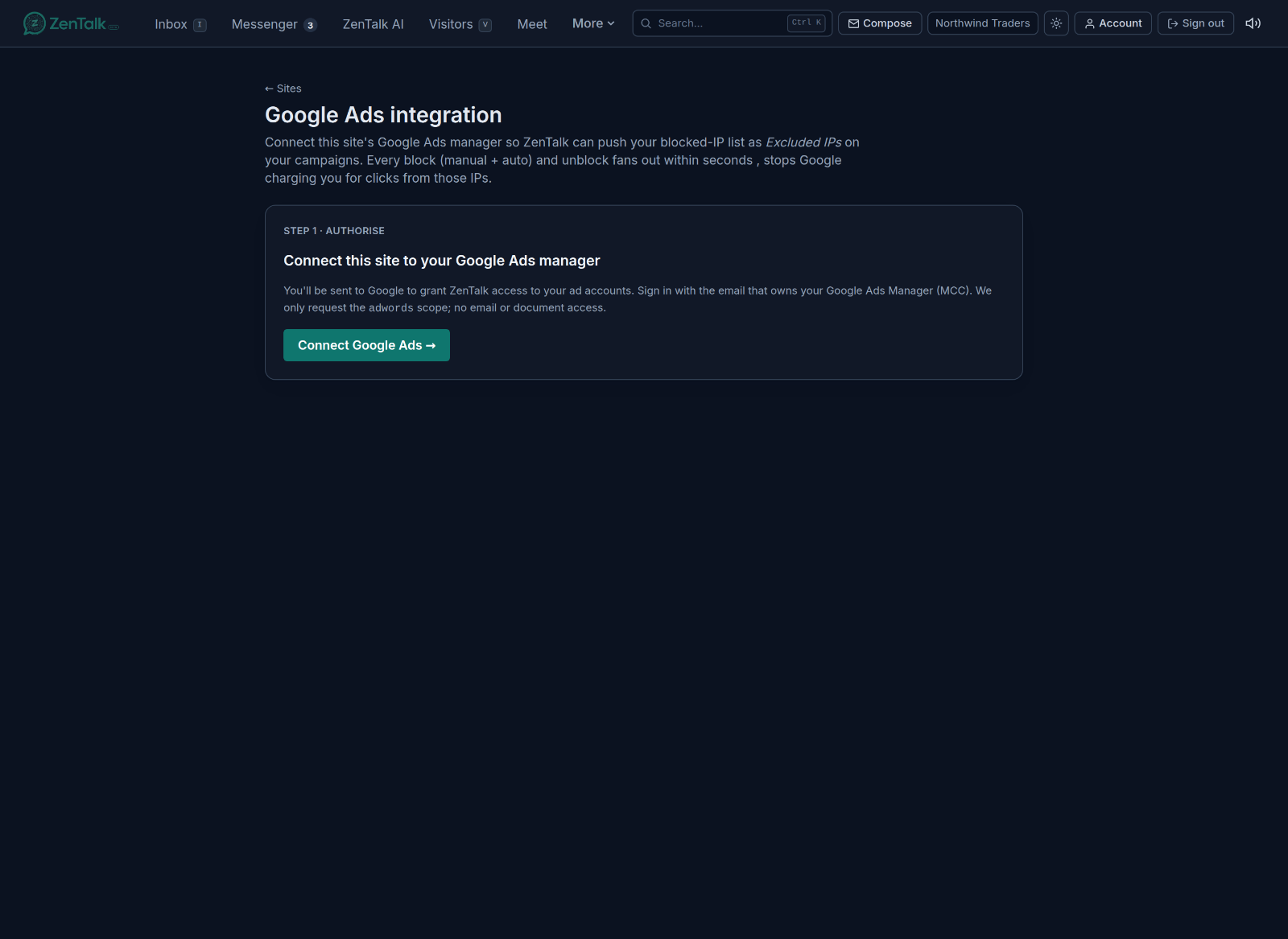
Connecting Google Ads lets ZenTalk push your blocked-IP list straight to your campaigns as excluded IPs. Every block you make, manual or automatic, and every unblock, fans out to Google within seconds, so you stop paying for clicks from bots, scrapers, and known bad actors.
Where it lives
Open the Sites tab, select a site, and click Google Ads in the site card. This page is admin only, and the connection is per site so each property links to the right ad account.
Step 1: authorise
Click Connect Google Ads. You are sent to Google to grant ZenTalk access to your ad accounts. Sign in with the email that owns your Google Ads Manager, also called an MCC. ZenTalk requests only the ads scope, so it can manage campaign exclusions and nothing else. It never asks for access to your email or documents.
Step 2: choose accounts and campaigns
Once connected, pick which customer accounts and which campaigns ZenTalk should keep in sync. Only the campaigns you select receive the excluded-IP updates, so you stay in control of what is touched.
How the sync behaves
- Blocks and unblocks made anywhere in ZenTalk, whether an agent blocks an IP by hand or the proxy and rapid-bounce guards do it automatically, are mirrored to your selected campaigns as excluded IPs.
- The integration also supports the Keyword Revenue P&L report, which ties ad spend to the revenue each keyword actually produced. Turn that on per site from the Sites feature toggles.
- The page shows the connection status and the last sync, so you can confirm it is live.
See what a visitor searched for
When someone clicks a Google ad and lands on your site, your team and your AI agent can see the keyword that brought them in, right on the visitor profile. Knowing a visitor searched for something like self publishing services lets your bot and your agents open with the exact intent instead of a cold greeting. This needs one small setting in Google Ads, because Google does not pass the keyword on its own.
Google auto tagging only adds an opaque click id (gclid), the campaign id, and the gbraid. None of those contain the keyword. To pass the keyword you add a final URL suffix to your Google Ads account. It is a one time setup.
- In Google Ads open Settings, then Account settings, then the Tracking section. You can also set this per campaign under that campaign's settings.
- In the Final URL suffix box paste: utm_term={keyword}&mt={matchtype}&utm_source=google&utm_medium=cpc
- Save. From the next click onward every paid visit carries the matched keyword in the landing URL, and ZenTalk stamps it on the visitor automatically. No change is needed on the ZenTalk side.
ZenTalk reads the keyword from any of the utm_term, kw, or keyword parameters, so if your tracking template already uses one of those it will work as is. The same keyword then powers the Keyword Revenue P&L report, tying each keyword to the revenue it produced.
Running Microsoft Advertising (Bing) too? ZenTalk tracks Microsoft ad visitors the same way. See the Microsoft Ads guide for the exact final URL suffix and what shows on the visitor.